Lakefront Bus

Office sign in

Tracking History Phone Bus cards Bus rental Setup Users

BusStopCameLeft

Who can call

Phone numberName

For the card number, click in the box and tap the card on the reader.

Card numberNameMoney on the card

WhenWhatMoneyLeft on the card

New booking

Customer

Trip

Price

See the miles and minutes of this trip on Google Maps

TextToWhen

SunMonTueWedThuFriSat

Next trips

WhenCustomerTripPrice

Texts

A new rental sends a text to its driver and to these numbers. So does its reminder.

Routes Buses Bus types Credit cards Schedules Stops
Name

BusColorRouteBus typeTablets

Use a Samsung tablet that is brand new, or that was reset to the way it left the store. It cannot be an iPad.

  1. Put the SIM card in the tablet and turn it on.
  2. The tablet shows its first screen. Tap an empty part of that screen 6 times. A camera opens.
  3. Hold the tablet so its camera sees this square.
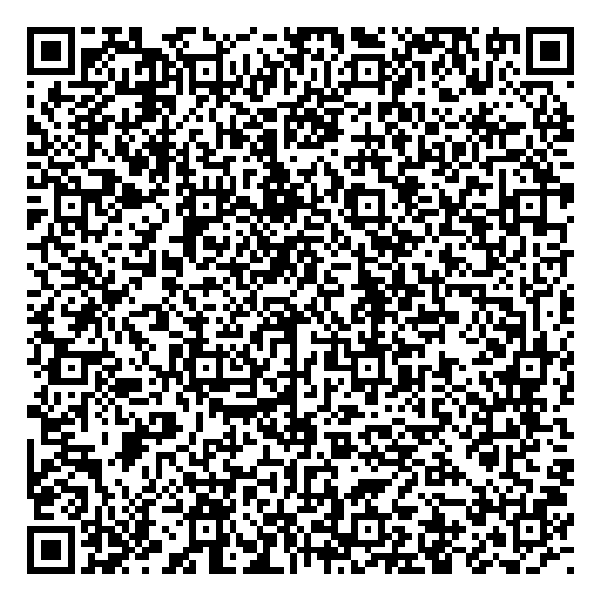
    Square code that sets up a new tablet
    The tablet now gets the bus app by itself. Press Next when it asks. This takes a few minutes.
  4. The tablet asks for 6 numbers. Type and press Connect. These numbers work for minutes.

Done. The tablet now shows only the bus screen. It updates by itself.

Does the tablet have the bus app already? Then only do step 4.

NameRental price per mileRental price per minute

The owner of the bus company copies it from dashboard.stripe.com/apikeys. It is typed here one time.

NameBusStartsEndsFare

StopNameAddressFareRoute

A stop with a fare shows on the tablet for riders to press. 0 is free. A stop with no fare costs the fare of the schedule.

Copy the rows of your sheet and paste them here. The columns, in this order: stop number, name, address. The stops go on the route picked above.

Or pick a CSV file:

Click the map where the stop sign is.

NameUsernameManagerTrackingHistoryPhoneBus cardsBus rentalSetupBlocked

Add a user